
Image to video AI: prompt workflow that works
Vlad Voronezhtsev · · Updated: · 6 min read

Image to video AI turns a still frame into a short clip, but the useful result comes from a structured prompt, not from a lucky render. In Kling 3.0, Veo 3.1, and Seedance 2.0, a good image-to-video brief defines the source frame, camera motion, subject action, lighting, pace, and constraints so the model keeps identity, background, and composition stable.
- 1.
Describe the source frame and the target clip
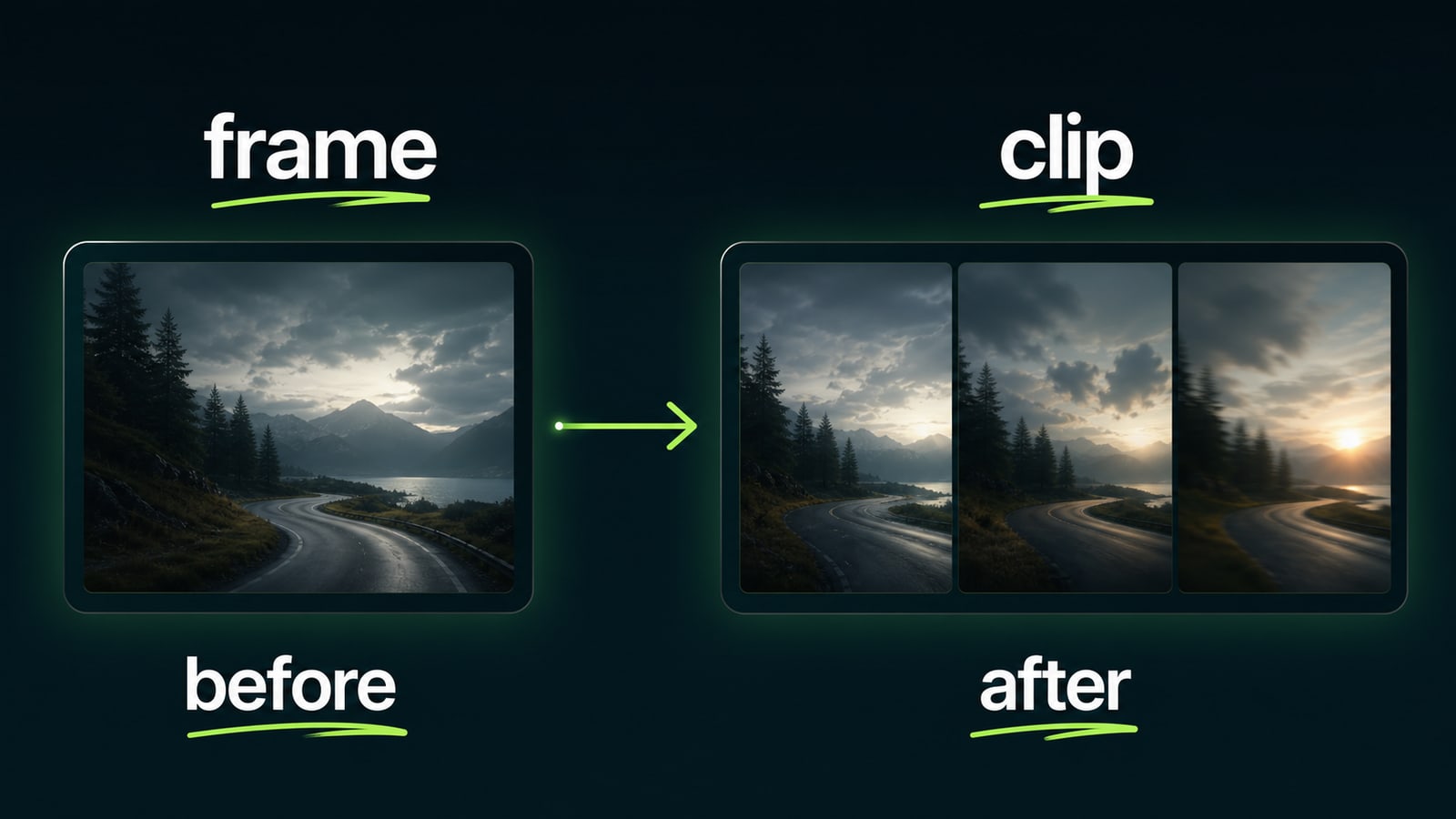
Image-to-video generation starts with what the still frame already contains and what should change over time. In the first sentence, name the subject, setting, current state, and intended clip type: a product motion shot, an atmospheric establishing shot, a smooth portrait, or a social short. That gives the AI video generator a stable anchor: it knows which elements to preserve and which elements can move.
Before
Animate this image and make it cinematic.
After
Image to video prompt: preserve the source composition. A person stands on a wet mountain road. Create a 5-second clip: jacket moves in the wind, clouds slowly open, camera gently pushes in.
- 2.
Break the prompt into scene, subject, light, and pace
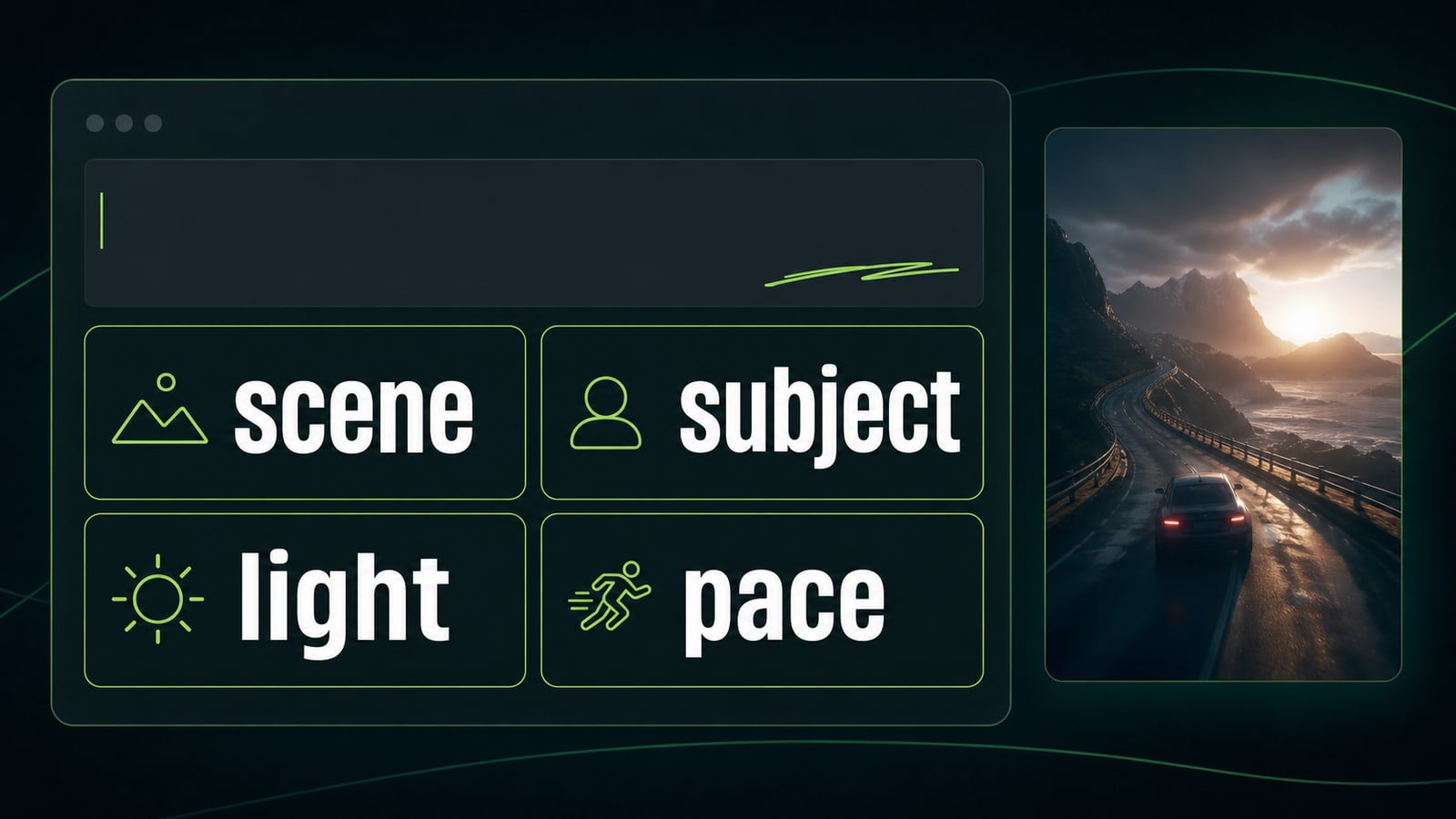
A reliable image-to-video prompt has four plain blocks: scene, subject, light, and pace. Scene defines the environment and mood, subject defines the main object and action, light controls readability, and pace controls how quickly the frame changes. Kling 3.0 exposes this on multi-shot and people shots, Veo 3.1 on image-to-video with native audio, and Seedance 2.0 on reference-heavy scenes with timing control. If one block is missing, the model guesses it, which often creates extra drama, chaotic camera motion, or identity drift.
Before
Woman outside, video, beautiful, realistic.
After
Scene: quiet evening street after rain. Subject: woman in a light coat walks forward and glances aside. Light: soft shop-window reflections on wet asphalt. Pace: slow, no abrupt jumps.
- 3.
Use one camera move
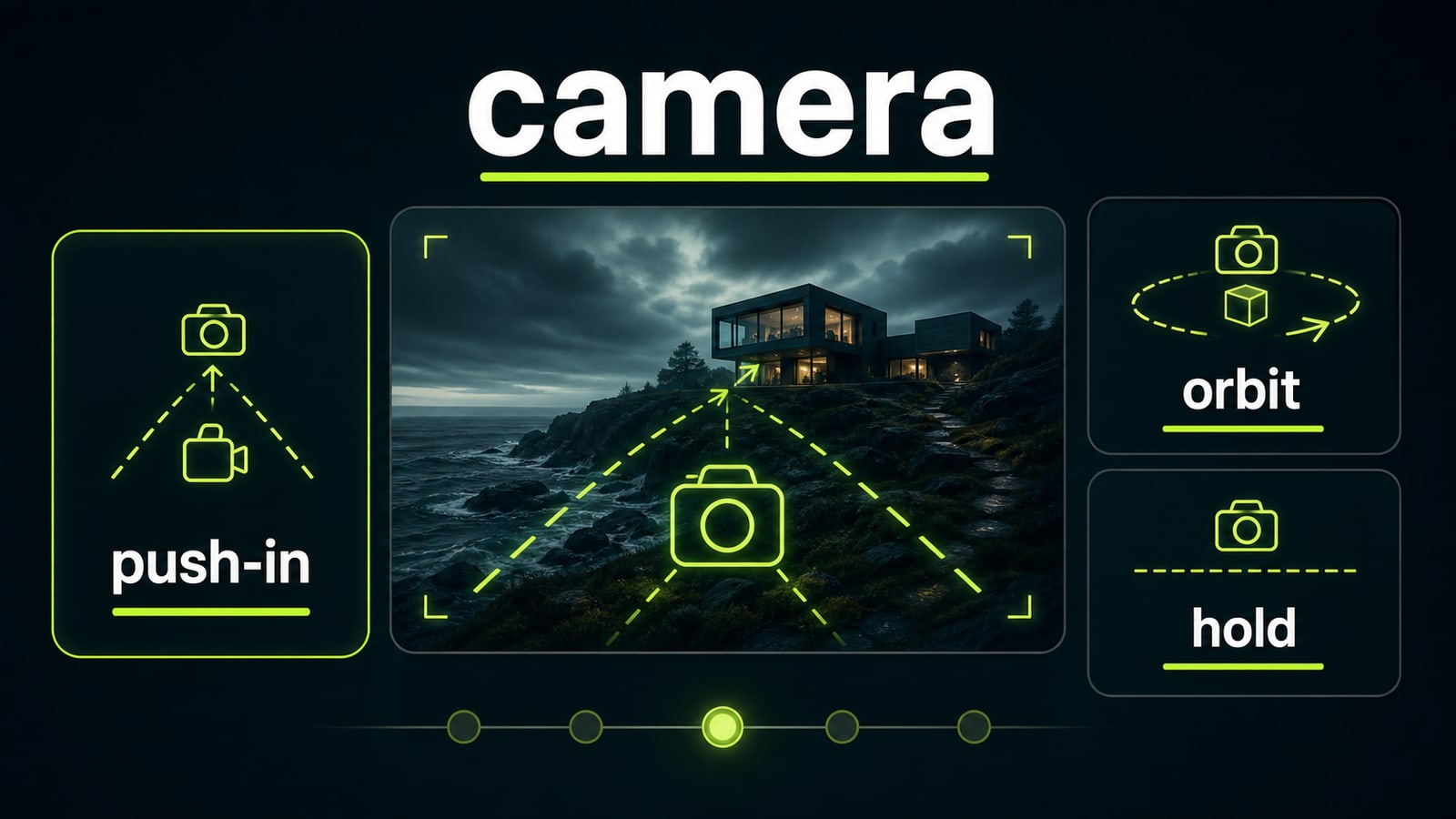
Short clips work best with one camera move: push-in, pull-back, orbit, pan, or a steady hold. A prompt that asks for push-in, orbit, drone rise, and hard zoom at once usually causes shake and frame breaks. State the movement and the constraint together: no shake, no angle change, no sudden cut. This keeps image to video AI closer to the original composition.
Before
Camera flies around, pushes in, then rapidly rises overhead.
After
Camera: slow 10% push-in, eye level, no rotation. Preserve horizon and subject position. No shake, no lens change, no cuts.
- 4.
Check face, hands, background, and pace before render
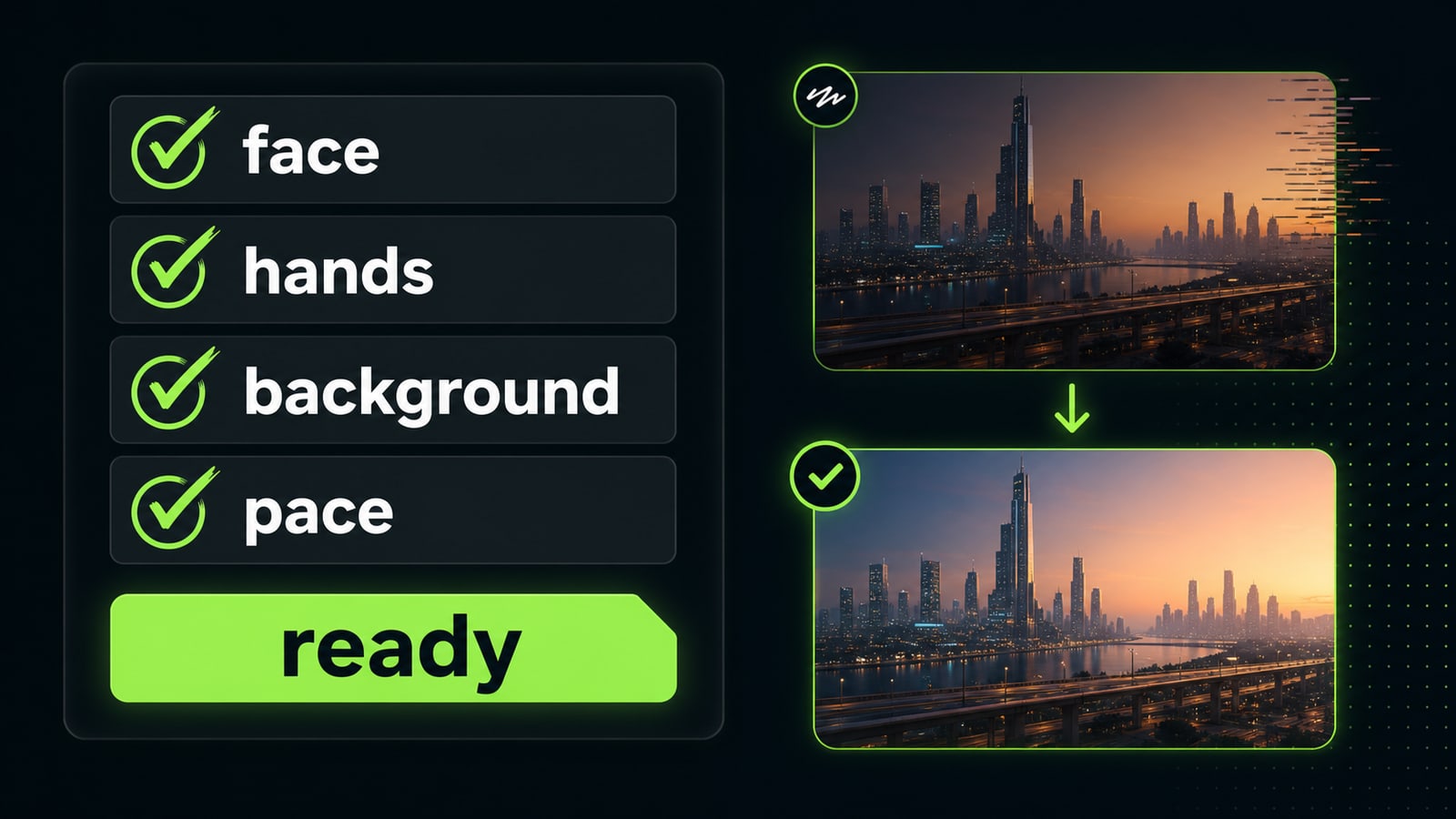
Before the final render, check four risk areas: face, hands, background, and pace. For a diagnostic pass, use a short clip and change one block at a time: compare the base prompt with `preserve finger count, keep both hands anatomically correct` without also changing camera and action. For people, explicitly preserve facial features, finger count, and body proportions. For objects, lock shape and material. For backgrounds, block new objects from appearing. Midjourney officially starts video generations at five seconds; for other models, confirm the available duration in the current interface.
Before
Make it 12 seconds, the character walks, waves, camera changes angle, background comes alive.
After
Duration 5 seconds. Preserve face, hands, outfit, and background. Motion only: the subject takes half a step forward, fabric moves slightly. No new people, no hand deformation, no scene change.


Sources and related guides
The factual basis for this article and useful next reads. External links point to official documentation.
- Official sourceMidjourney: Video ↗Official documentation for starting frames, five-second generations, motion low/high, extensions, and video parameters.
- Opten guideMidjourney Video motion-prompt structure ↗Separate subject motion, camera motion, and pace for one source frame.
- Opten guideKling 3.0 controllable shots and continuity ↗A fuller director brief for scene blocks, camera paths, and subject preservation.

