
AI lip sync: prompt workflow for clean video
Vlad Voronezhtsev · · Updated: · 6 min read

AI lip sync is the process of matching spoken audio to visible mouth movement in a video. Good output depends less on a magic tool and more on clean audio, a readable close-up face, stable head pose, and prompt constraints before you generate or edit the clip.
- 1.
Start with clean audio and a readable face
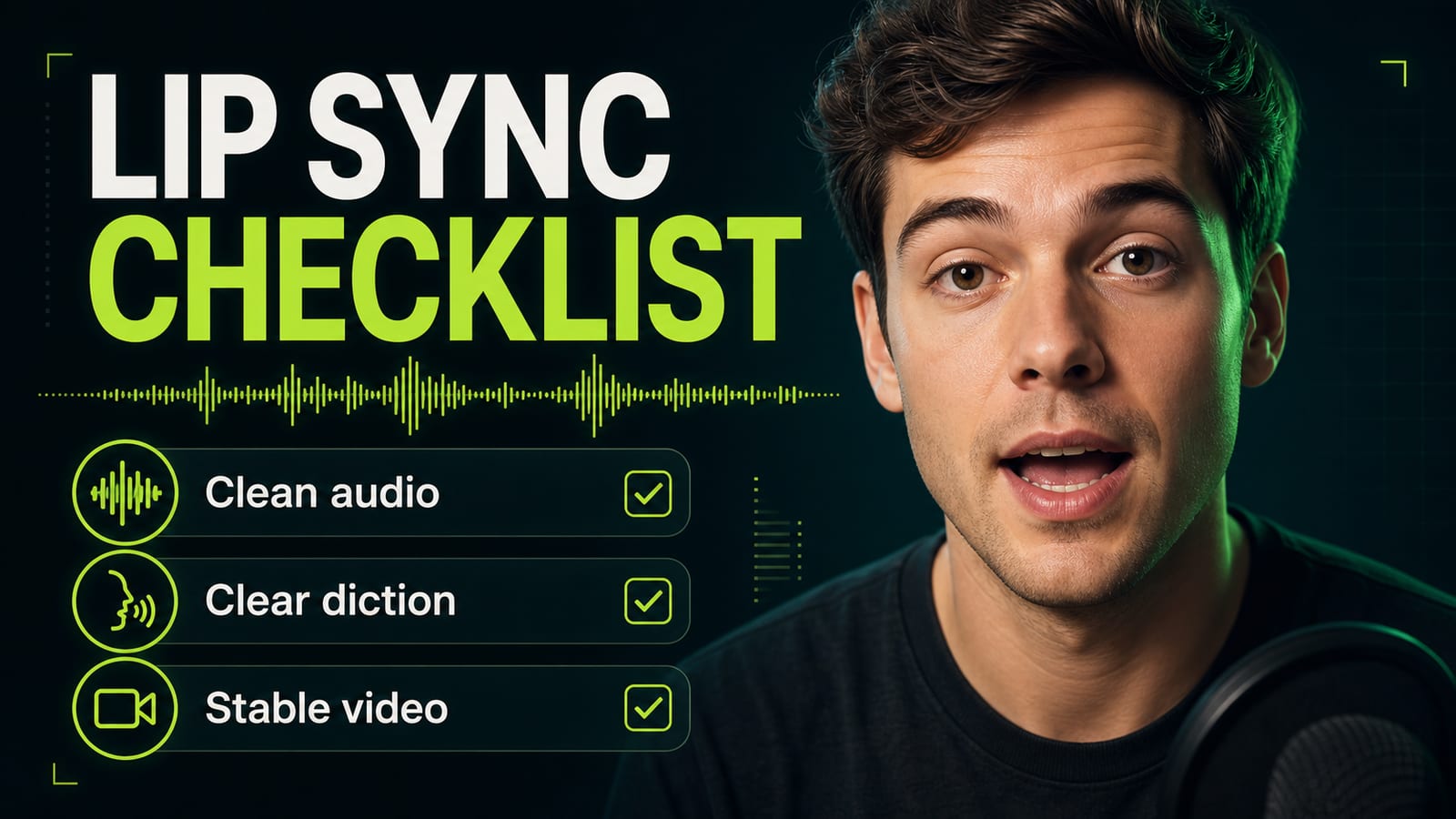
AI lip sync tools usually fail before rendering when the source is weak. You need a clean vocal track without music sitting on top of speech, a face in close-up or medium close-up, and video without fast head turns. If the mouth is tiny, the model has too little visual information to align. For a voiceover workflow, separate the voice from background noise, then check diction and phrase length. Speech that is too fast makes the mouth twitch. Long silent pauses can make the model keep chewing after the line ends. Start with an 8-15 second test, review it, then scale the same setup.
Before
Take this video and dub it with new text so the lips match.
After
Input: clean vocal track, no background music over speech. Video: close-up or medium close-up face, stable head pose, mouth visible, no fast profile turn. Goal: natural lip sync with calm diction and pauses preserved.
- 2.
For ai lip sync video, close-up beats a wide shot
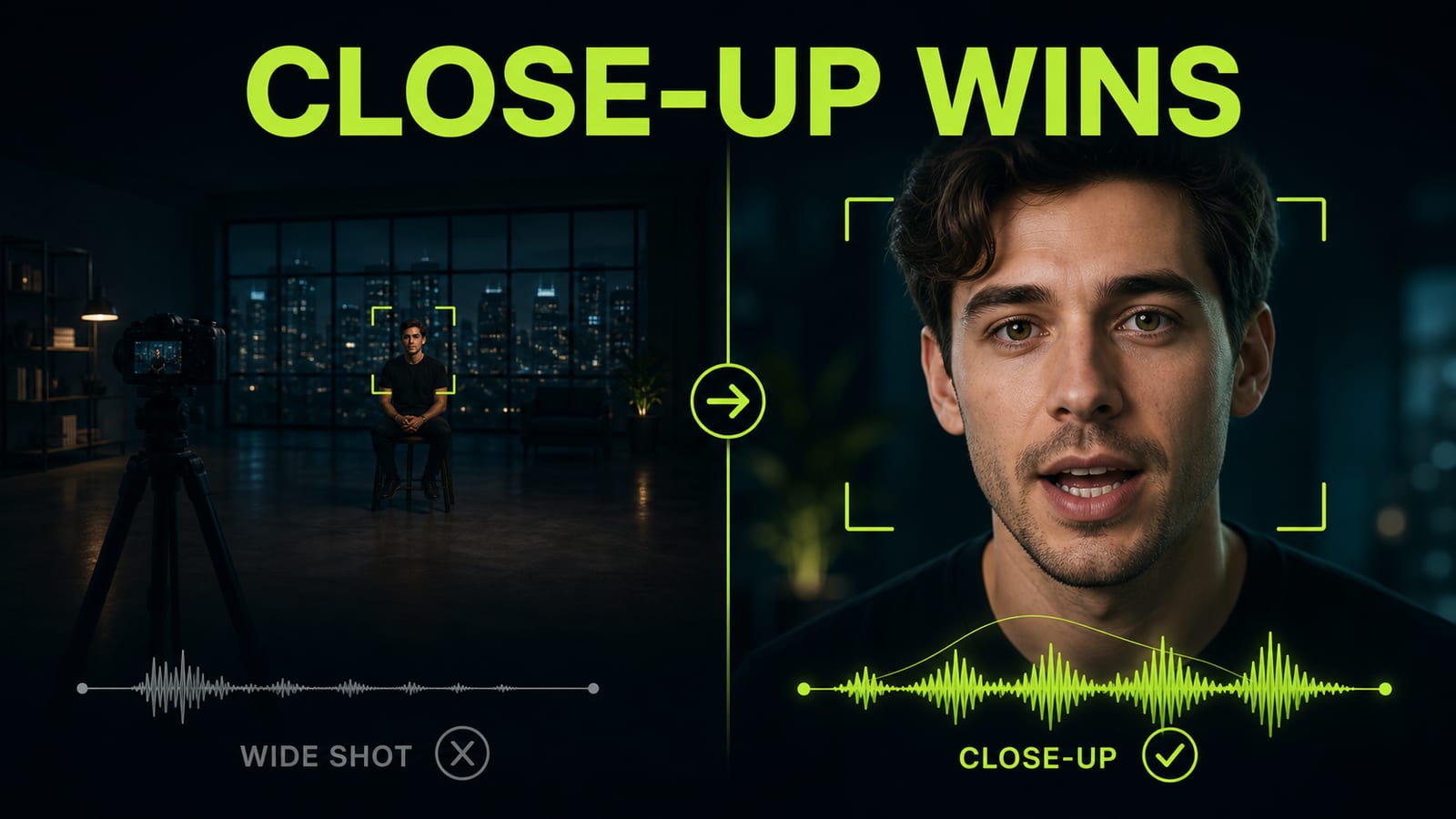
When people compare ai lip sync tools, they often start with the service name. In production, the first filter is simpler: can the model see the mouth? A wide full-body shot almost always loses to a close-up, even with a stronger model. The face needs light, and the lips cannot be blocked by a mic, hand, hair, or heavy shadow. HeyGen's official guidance specifically calls for clearly visible lips and warns that a character that is too small in the frame may not work well. Start with a controlled comparison: use the same short audio clip with a wide shot, then with `medium close-up talking portrait, clear mouth movement, stable head pose, soft frontal light, no fast turn`. Review articulation without changing voice, light, and pace at the same time.
Before
A presenter stands in a dark studio and talks to camera, cinematic wide shot.
After
Medium close-up talking portrait, face fills 45% of frame height, clear mouth movement, stable head pose, soft frontal light, no hand over mouth, no fast turn, clean neutral background.
- 3.
Lock the mouth, pose, and emotion in the prompt
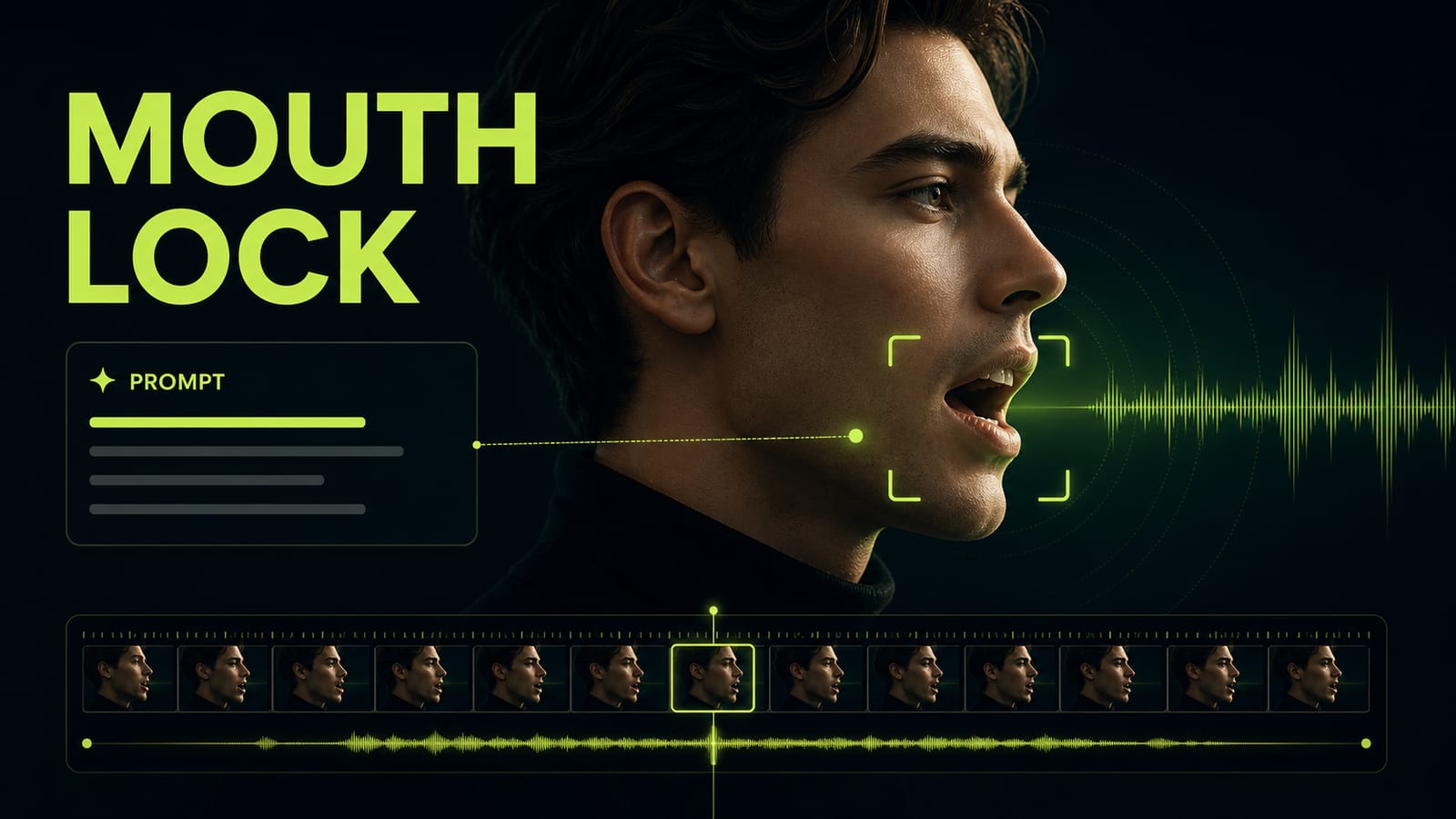
AI lip sync can break even when the audio is clean. A common reason: the prompt describes the scene but not the articulation constraints. The model moves the head beautifully, changes the expression, adds a smile, and the mouth no longer matches the line. For a talking head, stability matters more than dramatic acting. Put the control block next to the camera instructions: `clear mouth movement`, `stable jaw`, `same neutral expression`, `no exaggerated smile`, `no profile turn`. If you generate image-to-video before the lip-sync pass, these constraints belong in the source clip prompt too. Opten helps as a preflight editor: it expands a rough idea into a production prompt and catches missing preserve lines.
Before
A woman speaks emotionally, cinematic, expressive face, beautiful motion.
After
Talking head shot. Preserve: same face, stable head pose, neutral attentive expression, clear mouth movement, natural jaw motion. Constraints: no exaggerated smile, no profile turn, no hand near mouth, no random text.
- 4.
Match speech timing before the final render
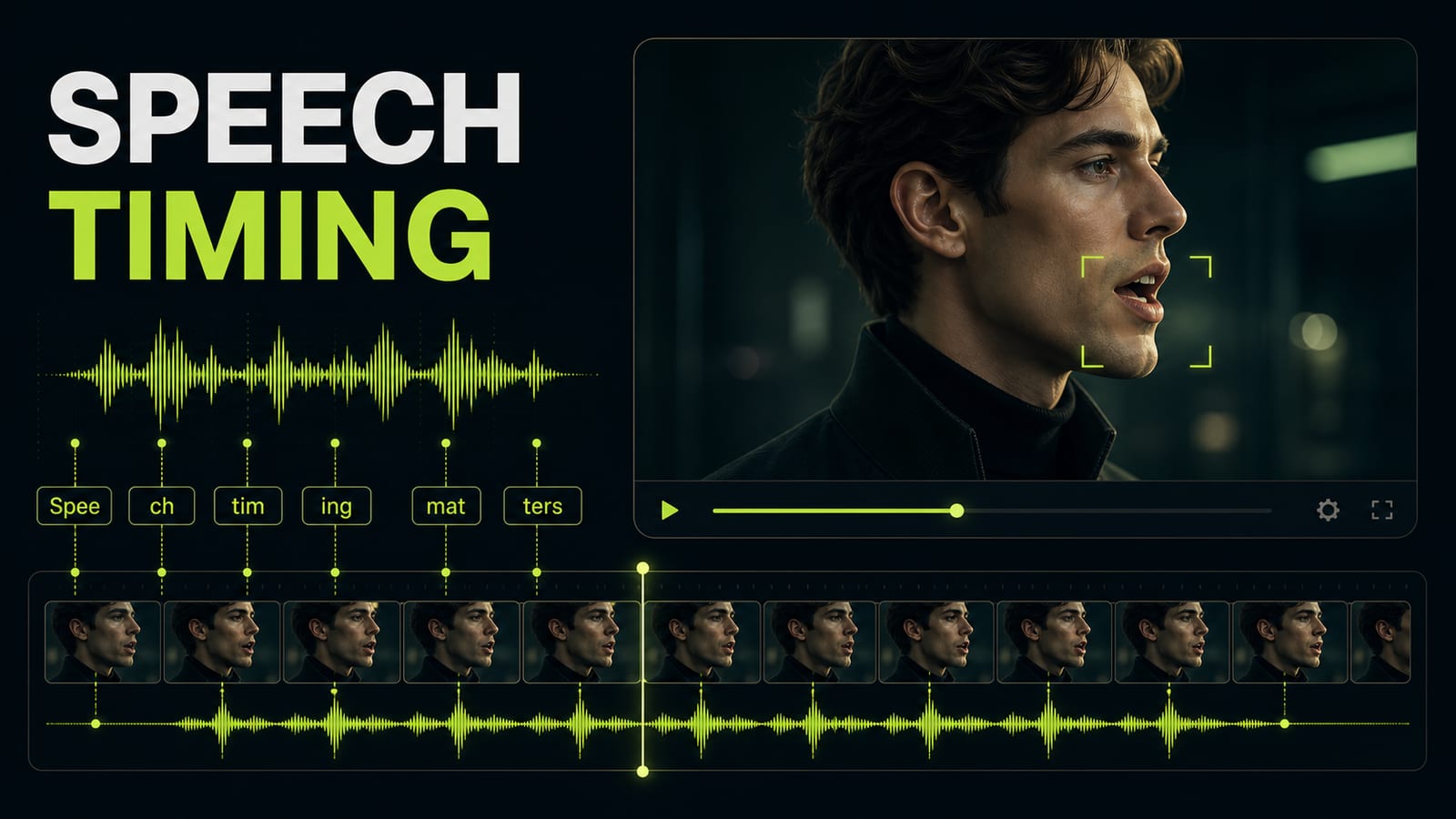
An ai lip sync tutorial should spend more time on timing than people expect. A translated or rewritten line may be longer than the original screen time. If you force it into the same shot, the model stretches the mouth after the word ends or closes it before the final syllable. Do a short timing pass: split the script into breath-length phrases, remove tongue twisters, and keep pauses before cuts. For a long video, do not sync everything at once. Render the first paragraph, check the mouth, then send the rest of the dubbing once the pace works.
Before
Read the new line faster so it fits the old video.
After
Voiceover timing: keep natural pace, split into short phrases, preserve pauses before cuts, close mouth after final syllable, no stretched vowels to fill the shot.
- 5.
Review the final clip for platform use
AI lip sync online workflows are useful because they are fast, but the final check still has to be human. A small mobile preview hides some mouth errors, while a desktop YouTube view exposes every desync. Do not judge only from the tool's tiny preview window. Use a practical checklist: the mouth closes after the line, teeth do not flicker, emotion stays stable between frames, there is no random text in the shot, and volume does not jump. If one point fails, fix one axis at a time: audio, crop, head pose, or timing. Rewriting the entire prompt is usually slower.
Before
Make it better so the lips match and the video looks professional.
After
Fix one axis only: cleaner vocal track OR closer crop OR stable head pose OR slower timing. Keep the approved face, lighting, camera distance, and background unchanged.


Sources and related guides
The factual basis for this article and useful next reads. External links point to official documentation.
- Official sourceHeyGen: How to Get Started with Photo Avatars ↗HeyGen's official requirements for a readable face, visible lips, and adequate character size.
- Opten guideImage-to-video: prepare a stable source clip ↗Motion, camera, and preserve-block guidance before the lip-sync stage.
- Opten guideVEED Fabric prompts for talking video ↗Prompt structure and constraints for generating a speaking character.

